How to Sync Obsidian on Windows and Android
If you want to know how to sync Obsidian on Windows and Android, the short answer is this: use Obsidian Sync if you want the easiest official option, use Syncthing if you want a free technical setup, or use Synch if you want a private end-to-end encrypted Obsidian sync alternative.
Windows and Android are a good Obsidian pairing because both platforms give you more direct access to local folders than iOS does. That makes several sync methods possible.
But not every method is equally safe for your vault.
Obsidian stores your notes as local Markdown files. Your vault can also include attachments, plugin settings, themes, snippets, and the .obsidian configuration folder. A sync tool needs to move those files without creating duplicates, conflicts, or broken settings.
This guide focuses only on syncing Obsidian between a Windows PC and an Android phone.
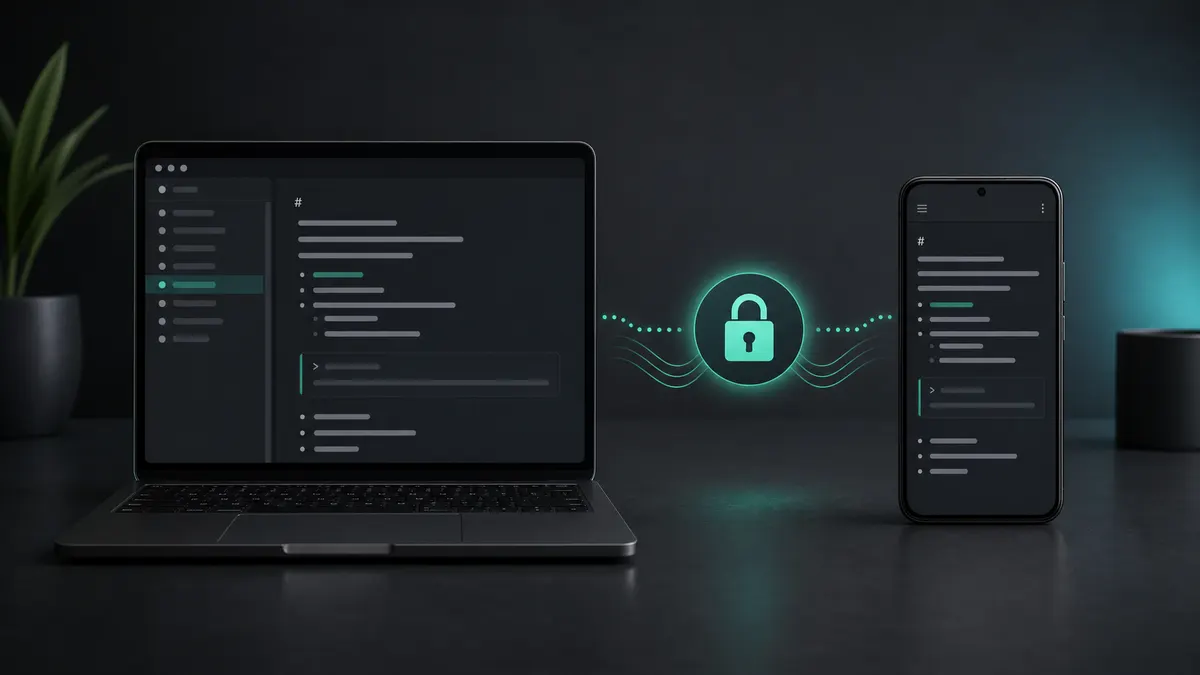
Best Options for Windows and Android
| Method | Best For | Cost | Privacy | Difficulty |
|---|---|---|---|---|
| Obsidian Sync | Users who want the official setup | Paid | End-to-end encrypted | Easy |
| Synch | Users who want private hosted sync with a free or low-cost plan | Free and paid plans | End-to-end encrypted | Easy |
| Syncthing | Technical users who want free device-to-device sync | Free | Private peer-to-peer sync | Medium |
| Google Drive, Dropbox, or OneDrive | Desktop-heavy workflows | Often free within storage limits | Depends on provider | Medium |
| Git | Developers and technical writers | Often free | Depends on remote host | Hard |
For most Windows and Android users, the real choice is between three options:
- Obsidian Sync if you want the official service.
- Syncthing if you want free peer-to-peer sync and can handle setup.
- Synch if you want private encrypted sync without managing your own sync system.
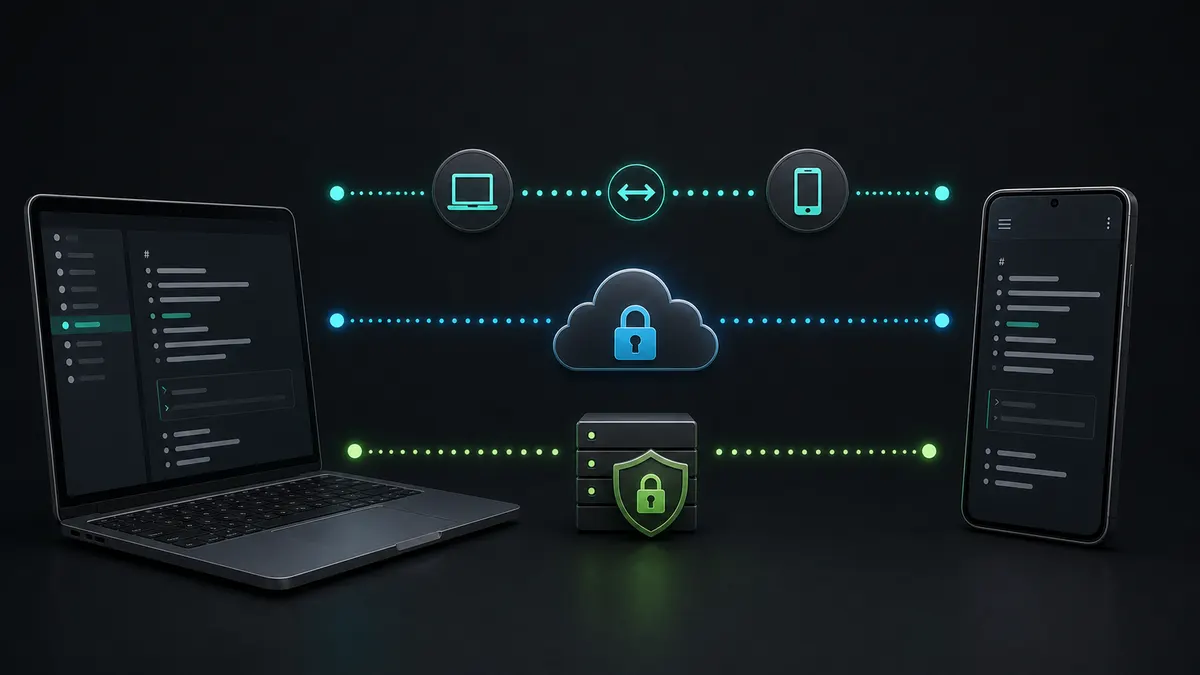
Before You Sync: Back Up Your Vault
Before setting up any sync method, make a copy of your Obsidian vault on Windows.
Your vault is just a folder. Copy it somewhere outside the sync folder, such as an external drive or a separate backup directory.
This matters because the riskiest moment is the first sync. If a tool is pointed at the wrong folder, treats one device as empty, or creates a conflict, a backup lets you recover quickly.
Also decide whether you want to sync your .obsidian settings folder. Syncing it keeps plugins, themes, hotkeys, and app settings closer across devices, but some settings may not feel right on both desktop and mobile.
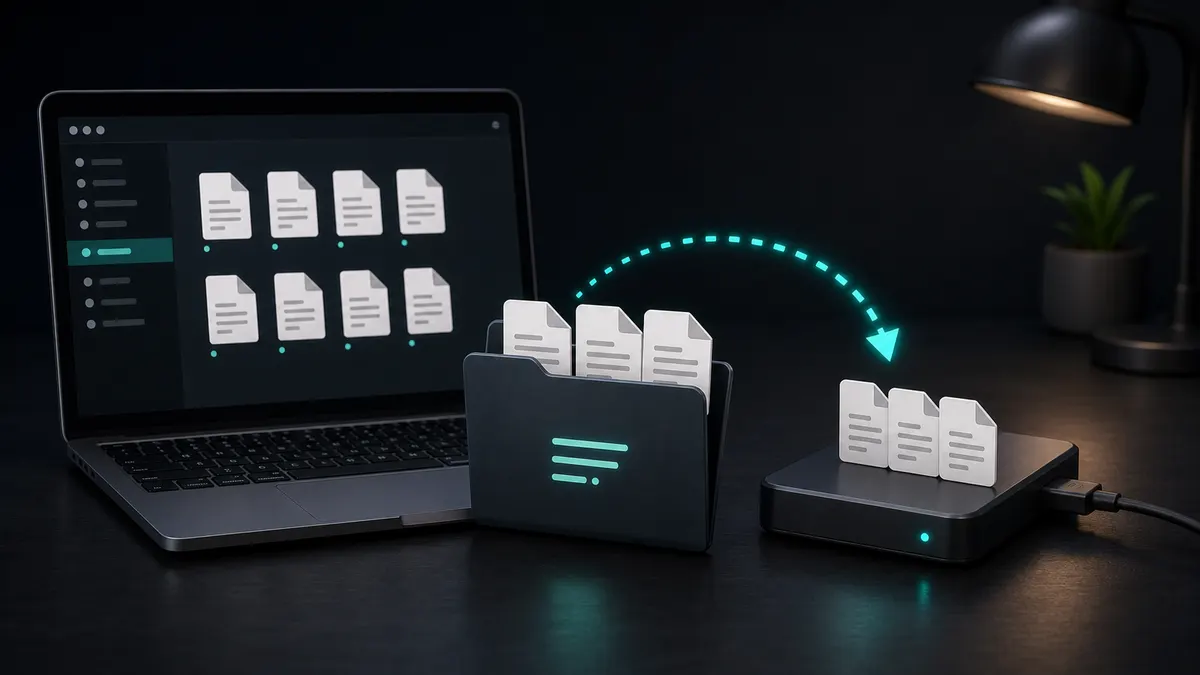
Option 1: Sync Windows and Android With Obsidian Sync
Obsidian Sync is the official way to sync Obsidian across devices.
For Windows and Android, it is the simplest setup:
- Install Obsidian on Windows.
- Open your vault or create a new one.
- Subscribe to Obsidian Sync.
- Create or connect a remote vault.
- Let the Windows vault upload.
- Install Obsidian on Android.
- Sign in and connect the Android app to the same remote vault.
- Wait for the vault to download before editing heavily on Android.
The main advantage is that Obsidian Sync is built into the app. It supports end-to-end encryption, version history, and selective sync, so it understands Obsidian better than a generic file sync tool.
The tradeoff is price. If you are comfortable paying for the official service, this is the easiest recommendation.
Option 2: Sync Windows and Android With Synch
Synch is an open-source, end-to-end encrypted sync service for Obsidian users.
It is designed for people who want private hosted sync without relying on Google Drive, Dropbox, OneDrive, or a self-managed peer-to-peer setup.
The general workflow is:
- Install the Synch Obsidian plugin on Windows.
- Connect your vault to Synch.
- Let the initial upload finish.
- Install Obsidian on Android.
- Install and enable the Synch plugin on Android.
- Connect to the same Synch vault.
- Let the initial download finish before editing from both devices.
Synch focuses on three things that matter for a Windows and Android setup:
- End-to-end encryption: vault data is encrypted locally before upload.
- Obsidian compatibility: the sync workflow is built around Obsidian vaults, not generic folders.
- Accessible pricing: there is a free plan for small vaults and a low-cost Starter plan for larger personal use.
The current Synch free plan includes one synced vault, 30 MB of storage, a 3 MB maximum file size, and 1 day of version history. The Starter plan includes one synced vault, 1 GB of storage, a 5 MB maximum file size, and 1 month of version history.
Synch is a good fit if you want something simpler than Syncthing and more privacy-focused than a generic cloud drive.
Option 3: Sync Windows and Android With Syncthing
Syncthing is a popular free option for Windows and Android.
It syncs folders directly between devices. Your notes do not need to sit in a central cloud drive, which makes Syncthing attractive for users who want a private peer-to-peer setup.
A typical setup looks like this:
- Install Syncthing on Windows.
- Install a Syncthing-compatible Android app.
- Add your Android device to Syncthing on Windows.
- Add your Windows device to Syncthing on Android.
- Share your Obsidian vault folder from Windows.
- Accept the shared folder on Android.
- On Android, open the synced folder as an Obsidian vault.
- Wait for sync to finish before editing notes on both devices.
Syncthing can work very well, but you need to understand the tradeoffs.
Both devices need enough time online to exchange changes. Android background behavior can also affect sync timing depending on battery settings. If you edit the same note on Windows and Android before both devices have synced, you can still create conflicts.
Syncthing is best if you want free sync and do not mind configuring devices yourself.
Option 4: Use Google Drive, Dropbox, or OneDrive
Cloud drives can sync Obsidian on Windows easily, but Android is where the setup becomes less clean.
On Windows, you can place your vault inside a synced cloud folder. On Android, however, Obsidian needs reliable local folder access. Many cloud drive apps do not behave like a normal always-available local folder, so you may need extra tools or manual download workflows.
This approach can be acceptable if you mostly edit on Windows and only use Android for occasional reading. It is less ideal if you want seamless two-way editing.
The other issue is privacy. Unless you add your own encryption layer, your notes are protected according to the cloud provider’s storage model, not an Obsidian-specific end-to-end encrypted sync model.
Use a cloud drive only if your vault is simple and you already understand the Android file access limitations.
Option 5: Use Git
Git can sync Obsidian notes because Markdown files work well with version control.
On Windows, Git is straightforward if you already use developer tools. On Android, it usually requires a Git-capable app or a more manual workflow. That makes it powerful but inconvenient for everyday note-taking.
Git is good for:
- Explicit version history
- Reviewing changes
- Recovering older note versions
- Developer workflows
Git is not ideal for:
- Automatic background sync
- Fast mobile capture
- Non-technical users
- Avoiding merge conflicts
Use Git if you already know Git and want version control more than seamless sync.
Recommended Setup for Most Windows and Android Users
If you want the least friction and official support, choose Obsidian Sync.
If you want a free setup and can manage device pairing, folder sharing, and Android battery settings, choose Syncthing.
If you want private hosted sync with end-to-end encryption and a simpler workflow than Syncthing, choose Synch.
Avoid using multiple sync tools on the same vault at the same time. For example, do not put the same vault in OneDrive while also syncing it through Syncthing or another Obsidian sync service. That is one of the easiest ways to create conflicts.
Common Windows and Android Sync Problems
The most common problem is editing before the first sync finishes. If you connect a new Android device, wait until the full vault has downloaded before making changes.
Another common issue is Android battery optimization. If your sync tool is not allowed to run in the background, changes may not upload or download when you expect.
Large attachments can also slow down sync. If your vault has many PDFs, images, audio files, or videos, check file size limits and selective sync behavior before assuming everything will work the same as small Markdown notes.
Plugin settings can be tricky. A desktop plugin setup may not translate perfectly to Android. If your mobile Obsidian app behaves strangely after syncing settings, review which parts of .obsidian you are syncing.
FAQ
What is the best way to sync Obsidian between Windows and Android?
The easiest official option is Obsidian Sync. The best free technical option is usually Syncthing. If you want private hosted sync with end-to-end encryption, Synch is designed for that use case.
Can I sync Obsidian between Windows and Android for free?
Yes. Syncthing is a strong free option for Windows and Android. Synch also has a free plan for small vaults. Cloud drives may be free within storage limits, but Android folder access can make them less convenient.
Can I use Google Drive to sync Obsidian on Android?
It is possible in some workflows, but it is not the cleanest option. Google Drive works better on desktop than as a seamless local vault folder for Obsidian on Android.
Is Syncthing safe for Obsidian?
Syncthing can be safe for Obsidian if you configure it carefully, wait for sync to complete before editing on another device, and keep backups. It is still a file sync tool, so you are responsible for conflict handling and device availability.
Should I sync the .obsidian folder?
Sync it if you want plugins, themes, hotkeys, and settings to stay similar across Windows and Android. Do not sync everything blindly if you want different desktop and mobile setups.
Is Synch an Obsidian Sync alternative for Windows and Android?
Yes. Synch is built as a private, end-to-end encrypted Obsidian sync alternative. It is especially relevant if you want hosted sync without using a generic cloud drive or managing Syncthing yourself.
Final Recommendation
For Windows and Android, you have more good sync options than iPhone users do.
Use Obsidian Sync if you want the official integrated service. Use Syncthing if you want free peer-to-peer sync and are comfortable managing setup details. Use Git if you are a developer and want explicit version control.
Use Synch if you want a private, end-to-end encrypted Obsidian sync alternative that works for Windows and Android without turning your notes workflow into infrastructure maintenance.