Remotely Save for Obsidian: Setup, Pros, Cons, and Alternatives
If you want to sync Obsidian without paying for the official service, Remotely Save is one of the first community plugins you will find.
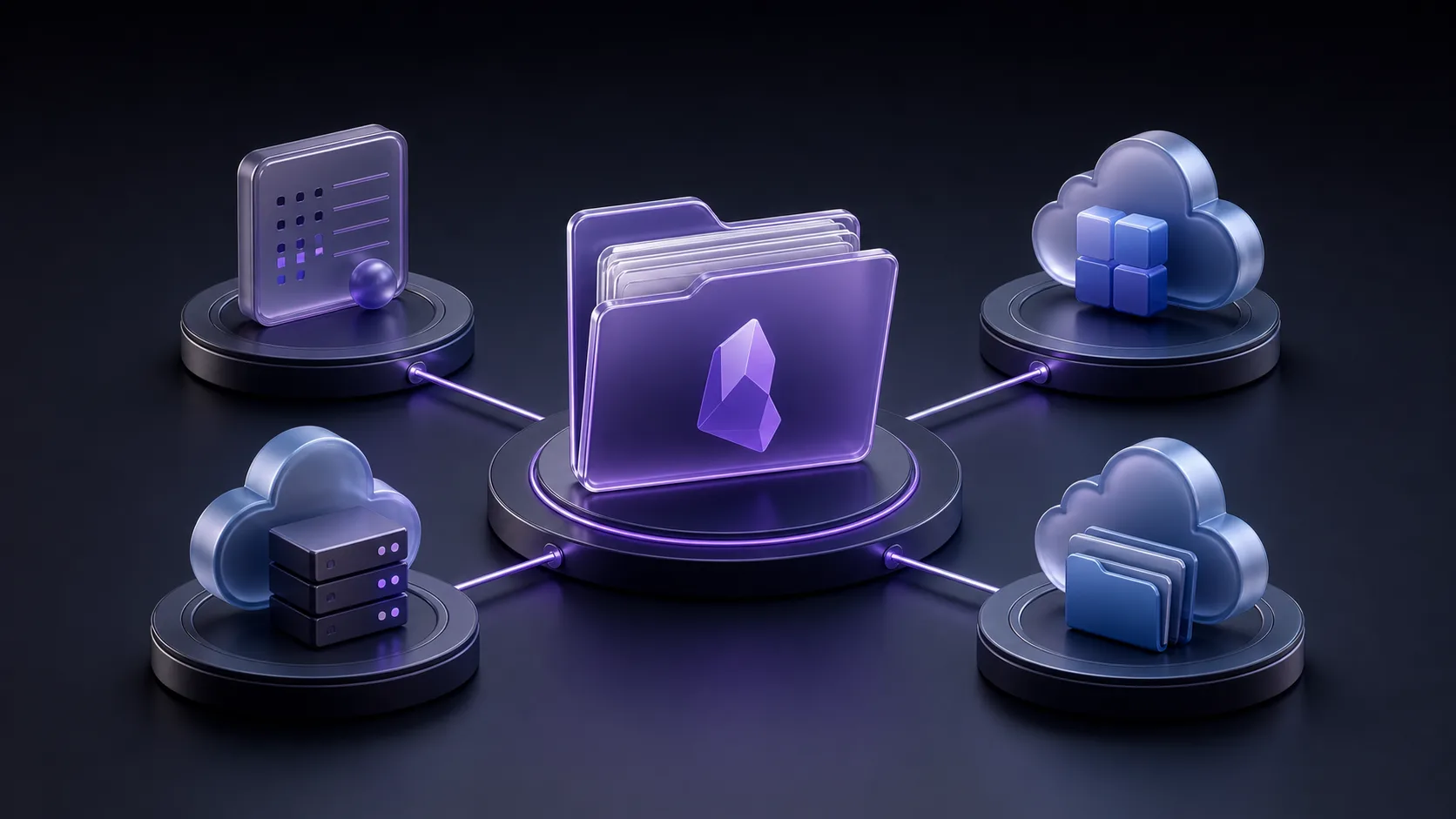
It is popular for a good reason. Instead of forcing you into one sync provider, Remotely Save lets you connect an Obsidian vault to storage you choose yourself: S3-compatible storage, WebDAV, Dropbox, OneDrive, Google Drive, Box, pCloud, Koofr, Azure Blob Storage, and other backends depending on the feature tier.
That flexibility is the point.
It is also the tradeoff.
Remotely Save can be an excellent fit if you already know where you want your vault data to live and you are comfortable configuring sync settings. If what you really want is a simple Obsidian-focused sync service, you may eventually prefer a different tool.
This guide explains how Remotely Save works, when it is a good choice, what to watch out for, and when an alternative like Synch may be simpler.
What Is Remotely Save?
Remotely Save is an unofficial Obsidian community plugin for syncing notes between a local vault and remote cloud storage.
It is not the official Obsidian Sync service. It runs inside Obsidian as a plugin and uses your chosen storage provider as the remote sync location.
The basic model looks like this:
Obsidian vault on device A
        |
Remotely Save plugin
        |
your chosen remote storage
        |
Remotely Save plugin
        |
Obsidian vault on device B
The remote storage acts as the broker between devices. Depending on your setup, that broker might be an S3-compatible bucket, a WebDAV server, Dropbox, OneDrive, Google Drive, or another supported service.
Why People Use Remotely Save
The main reason to use Remotely Save is control.
With the official Obsidian Sync service, the sync service is chosen for you. With Remotely Save, you bring your own storage. That makes it attractive if you already use a storage provider, want to keep data in a specific cloud account, or prefer a setup that is not tied to a single hosted sync product.
Remotely Save is especially appealing when:
- You want to sync Obsidian through storage you already trust
- You want S3-compatible storage such as Cloudflare R2, Backblaze B2, MinIO, or Amazon S3
- You want WebDAV through a self-hosted server, Synology, Nextcloud, or another provider
- You want an Obsidian plugin workflow instead of a separate desktop sync tool
- You want mobile and desktop sync through the same plugin
- You are comfortable reading settings carefully before trusting a vault to sync
For technical users, that flexibility can be more important than having the simplest possible setup.
Supported Storage Providers
Remotely Save supports several storage backends. The exact set depends on the plugin version and feature tier, but the project lists support for options such as:
| Storage backend | Why users choose it | Main tradeoff |
|---|---|---|
| S3-compatible storage | Flexible, cheap, works with providers like R2, B2, MinIO, and S3 | Requires bucket, keys, endpoint, and cost awareness |
| WebDAV | Works with many self-hosted and NAS setups | Quality depends heavily on the WebDAV server |
| Dropbox | Familiar hosted storage | You are relying on a general cloud drive provider |
| OneDrive | Convenient for Microsoft personal accounts | The free version uses the App Folder; full personal OneDrive access is a PRO feature, and Business accounts are not the documented target |
| Google Drive | Familiar storage for many users | Google Drive support is a PRO connect feature |
| Box, pCloud, Koofr, Azure Blob, and others | Useful when you already use those services | These listed providers are PRO connect features |
This is the major difference between Remotely Save and most Obsidian sync alternatives. It is not just a sync service. It is a bridge between Obsidian and many possible remote storage systems.
That bridge is powerful, but you still need to understand the storage system on the other side.
Basic Setup Flow
The exact setup depends on the provider, but most Remotely Save configurations follow the same pattern:
- Back up your Obsidian vault outside the sync target.
- Install Remotely Save from Obsidian’s community plugin browser.
- Choose a remote service in the plugin settings.
- Enter the provider credentials, endpoint, bucket, folder, or authorization details.
- Decide whether to enable encryption.
- Decide whether to skip large files or exclude paths.
- Run an initial sync.
- Install and configure the plugin on your other devices.
- Confirm that the same vault appears correctly before editing from multiple places.
The first step matters most. Any sync tool can propagate a mistake quickly. Before connecting a real vault to a new sync system, make a separate copy of the vault somewhere the plugin cannot touch.
Encryption in Remotely Save
Remotely Save supports password-based end-to-end encryption. If you configure an encryption password, files are encrypted before they are sent to the remote storage provider.
That is an important feature if you are storing private notes in a general cloud service or object storage bucket.
There are still details to understand:
- Encryption must be configured correctly on every device.
- If you forget the encryption password, you may not be able to recover the synced data from remote storage.
- Some metadata may still behave differently from a purpose-built encrypted sync service.
- The plugin settings file can contain sensitive information and should not be shared or committed to Git.
Encryption is not just a checkbox. It changes the recovery model. Before relying on it, test with a small vault and make sure another device can decrypt the data correctly.
Conflict Handling
Conflict handling is where Obsidian sync tools start to feel very different from ordinary file upload tools.
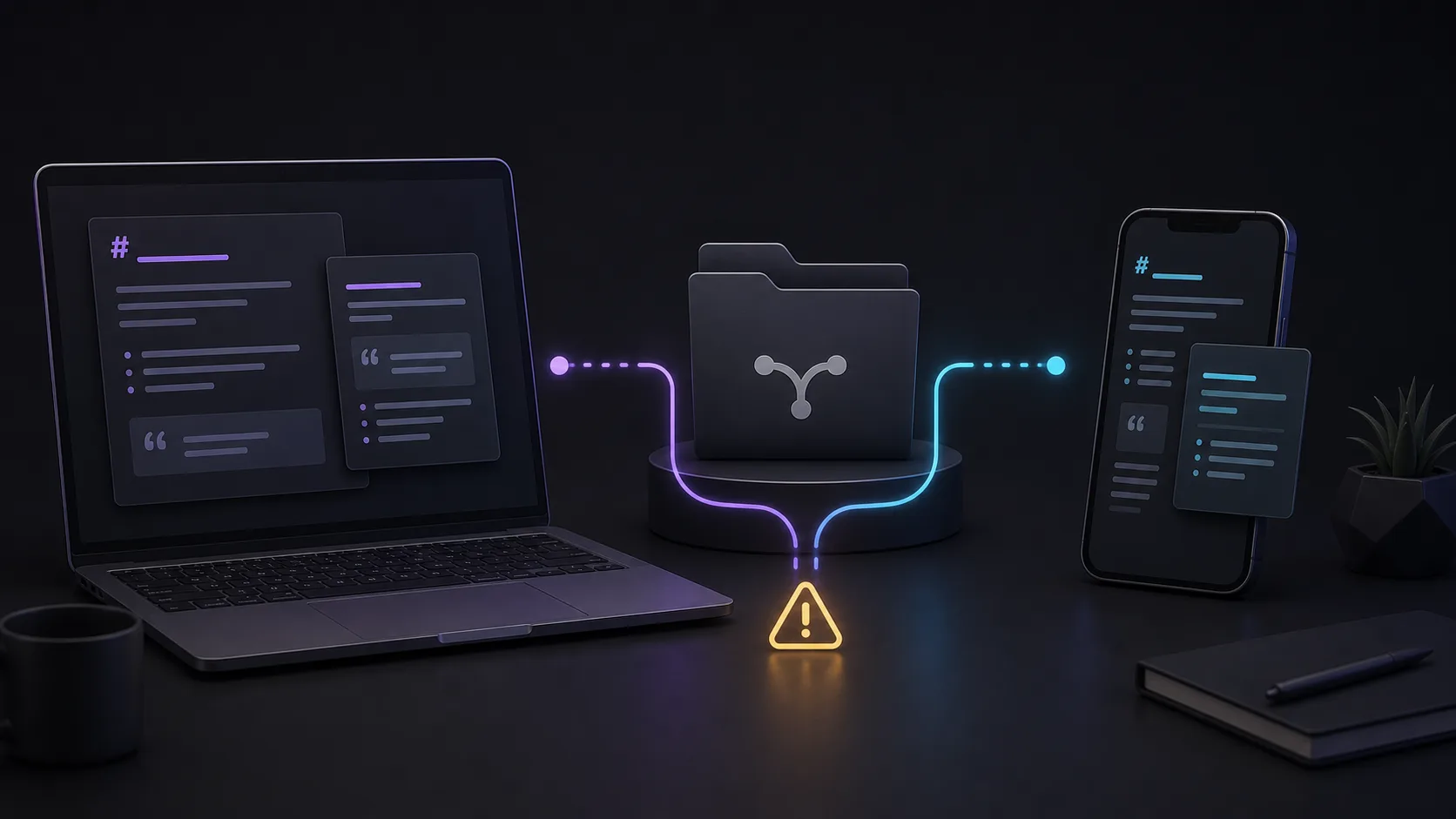
An Obsidian vault changes in many small ways. A Markdown note may change on your laptop. A plugin setting may change on your phone. A canvas file or attachment may still be uploading while another device starts editing. If two devices change related files before they see each other’s latest state, the sync tool has to decide what to do.
Remotely Save includes conflict detection and handling, with more advanced smart conflict behavior available in its PRO merge feature set. That can help, but it does not remove the need for good sync habits.
You should still avoid:
- Editing the same note heavily on two devices before syncing
- Running multiple sync systems on the same active vault
- Assuming a cloud backend is a full backup
- Syncing plugin settings without understanding mobile and desktop differences
- Treating conflicted copies as harmless noise
If a vault matters, keep an independent backup. Sync keeps devices consistent. Backup gives you a recovery point when consistency spreads the wrong change.
Mobile Sync
Remotely Save supports Obsidian mobile, which is one of the reasons it is popular.
Mobile support matters because many generic sync tools are much weaker on phones and tablets than they are on desktop. Android and iOS both place limits on background activity, file access, and long-running tasks. A plugin that works inside Obsidian can be easier to use than a separate file sync app.
Still, mobile sync has practical limits:
- Sync may only run reliably while Obsidian is open.
- Large files can be slow or problematic on mobile.
- OAuth and provider login flows can differ by platform.
- Mobile network changes can interrupt long sync operations.
- Plugin settings need to match across devices.
For a small Markdown-first vault, this may be fine. For a vault with many attachments, large PDFs, recorded audio, or frequent edits across devices, test carefully before treating it as production infrastructure.
Remotely Save vs Obsidian Sync
Remotely Save and Obsidian Sync solve overlapping problems, but they make different promises.
| Option | Best for | Strength | Tradeoff |
|---|---|---|---|
| Remotely Save | Users who want to bring their own storage | Flexible provider choice | More setup and backend responsibility |
| Obsidian Sync | Users who want the official integrated service | Polished, Obsidian-native experience | Paid subscription and proprietary hosted service |
If you want the least friction, Obsidian Sync is the easier recommendation. It is built by the Obsidian team and integrated directly into the app.
If you care more about choosing your own storage provider, Remotely Save is more flexible.
Remotely Save vs Syncthing
Syncthing is another popular free option for syncing Obsidian vaults. It is open source and peer-to-peer, which means your devices can sync directly without a central cloud storage provider.
That is a strong model for desktop-to-desktop setups.
The tradeoff is availability. Devices generally need to be online at the right time. Mobile setup can also be more awkward, especially if you want a setup that feels natural inside Obsidian.
Remotely Save uses remote storage as the broker. Syncthing uses device-to-device sync. Which one is better depends on whether you prefer a cloud-backed setup or a peer-to-peer setup.
Remotely Save vs Self-hosted LiveSync
Self-hosted LiveSync is a powerful Obsidian sync plugin for users who want a more advanced self-hosted sync system. It can be a strong fit for technical users who are comfortable running and maintaining backend infrastructure.
Compared with Remotely Save, Self-hosted LiveSync is more opinionated about the sync architecture. Remotely Save is broader in storage-provider choice. LiveSync can be more powerful if you want its specific model and are willing to operate it correctly.
For non-technical users, both can feel like more infrastructure than they expected.
When Remotely Save Is a Good Choice
Remotely Save is worth considering if you like the idea of configuring your own sync stack.
It is a good fit when:
- You already have a preferred storage provider
- You want S3, R2, B2, MinIO, WebDAV, or another specific backend
- You are comfortable managing credentials and plugin settings
- You understand that sync is not the same thing as backup
- You are willing to test with a copy of your vault before trusting it
- You want a community plugin rather than a dedicated hosted service
In that context, Remotely Save can be exactly the right tool.
When Remotely Save May Not Be the Best Fit
Remotely Save may not be the best choice if your real goal is simply to make Obsidian sync privately with as little configuration as possible.
You may want a different approach if:
- You do not want to choose or configure a storage backend
- You do not want to manage access keys, WebDAV URLs, buckets, or provider-specific settings
- You want a sync service designed specifically around Obsidian vault behavior
- You want hosted sync without paying for the official Obsidian Sync plan
- You want a simpler recovery and onboarding story for multiple devices
This is where the distinction matters:
Remotely Save is a flexible sync plugin for people who want to bring their own storage.
That is different from wanting a ready-to-use Obsidian sync service.
A Simpler Alternative: Synch
If Remotely Save sounds appealing because you want private Obsidian sync, but less appealing because you do not want to configure your own backend, Synch is worth considering.
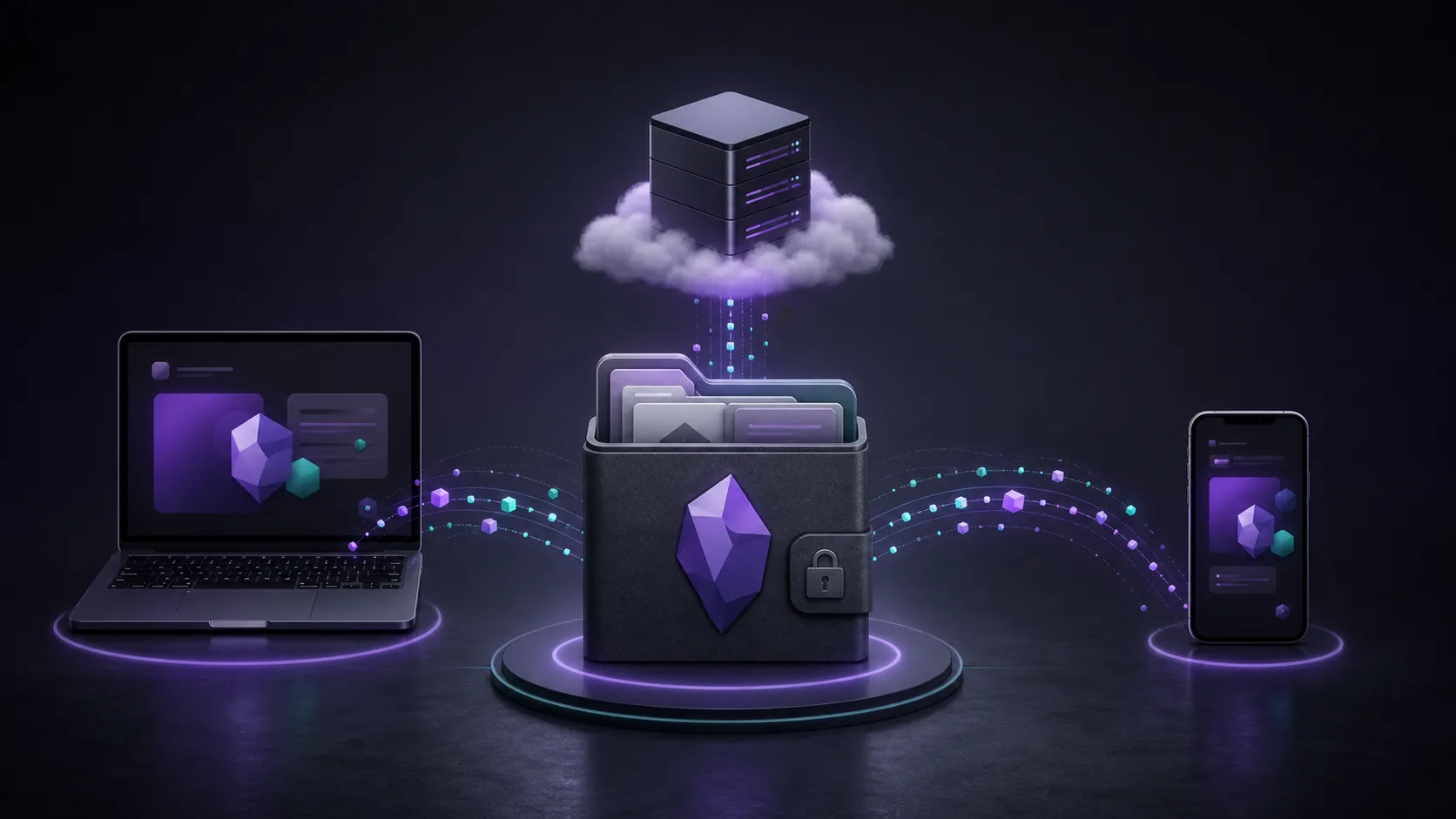
Synch is an open-source, end-to-end encrypted sync service built for Obsidian users. Instead of asking you to bring a storage provider and wire it into a plugin, Synch provides the hosted sync layer and focuses on the Obsidian vault workflow directly.
That makes the tradeoff clearer:
| Choose Remotely Save if… | Choose Synch if… |
|---|---|
| You want to bring your own storage | You want hosted Obsidian sync |
| You are comfortable configuring providers | You want less setup |
| You already use S3, WebDAV, Dropbox, or another backend | You want a service designed around the vault |
| You want maximum backend flexibility | You want a simpler encrypted sync path |
Remotely Save is still a strong option for users who want control over the storage layer. Synch is more natural if what you actually want is private Obsidian sync without turning storage selection into a project.
Practical Safety Checklist
Whichever sync method you choose, follow a few rules before connecting an important vault:
- Make a complete backup before the first sync.
- Test with a small vault first.
- Do not run two sync tools on the same active vault.
- Confirm encryption and decryption on a second device before trusting the setup.
- Keep credentials and plugin settings out of Git.
- Watch what happens to
.obsidiansettings before syncing them broadly. - Keep an independent backup even after sync appears to work.
The last point is not optional. Sync tools are designed to make devices agree. If the wrong deletion or empty file becomes the agreed state, you need a backup outside the sync loop.
Final Take
Remotely Save is one of the most useful Obsidian sync plugins because it gives you choice. You can connect your vault to storage you already use, configure encryption, sync across desktop and mobile, and avoid being locked into one official service.
But that choice comes with responsibility. You need to pick a backend, configure it correctly, understand its limits, and test your recovery path.
If you want that control, Remotely Save deserves a serious look.
If you mainly want private, hosted, end-to-end encrypted Obsidian sync with fewer moving parts, Synch may be the simpler option.