Self-host Synch on Cloudflare
Create your own Synch server on Cloudflare and connect the Obsidian plugin to it.
This guide walks you through creating your own Synch server on a free Cloudflare account, then pasting that server address into the Obsidian plugin. The button below lets Cloudflare prepare most of the setup for you.
Prefer to avoid Cloudflare entirely and run on your own hardware instead? See the self-hosting guide for Docker or systemd.
Before you deploy
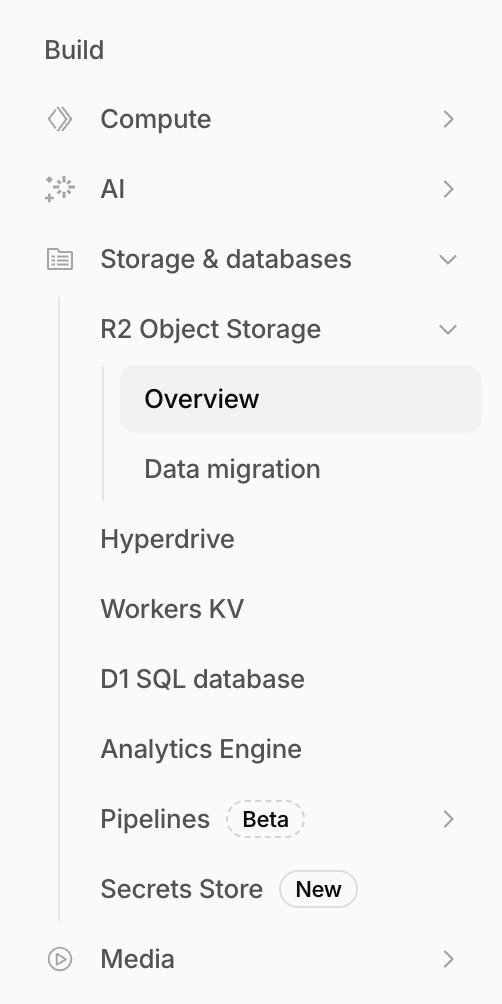
You can start with a free Cloudflare account. If your Cloudflare account is new, enable R2 first. In the Cloudflare dashboard, open R2 Object Storage, register a payment card, and turn R2 on. If you skip this step, the deployment can fail.
Deploy the API
- Click Deploy to Cloudflare.
- Sign in to Cloudflare and choose the account you want to use.
- Follow the prompts to connect your GitHub account to Cloudflare.
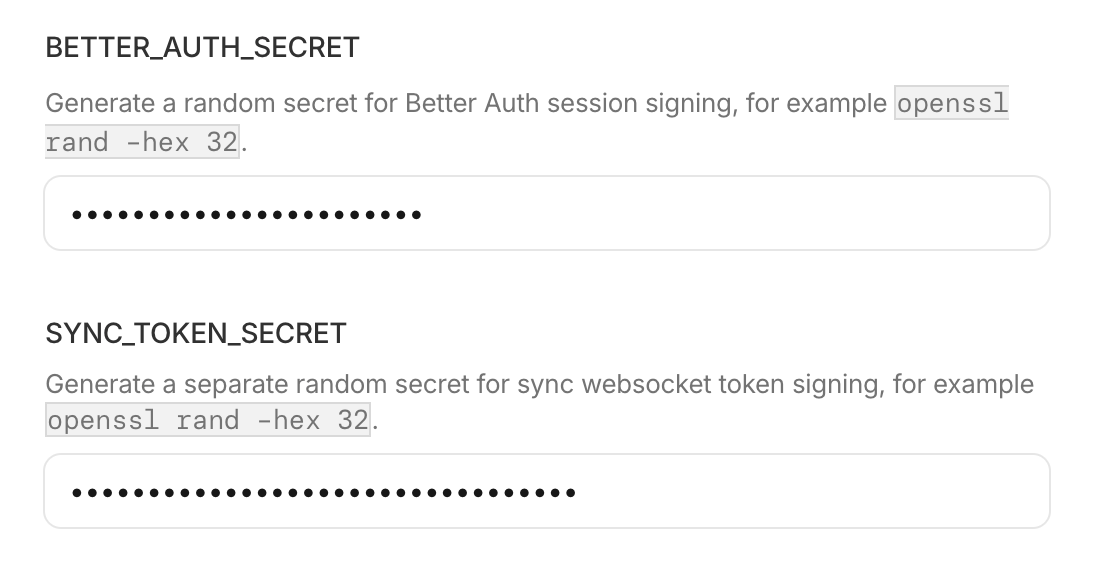
- When you reach the secrets screen, enter these three values:
AUTH_ALLOWED_EMAILS- comma-separated email addresses allowed to create accounts, for exampleyou@example.com,family@example.comBETTER_AUTH_SECRETSYNC_TOKEN_SECRET
Click the button, then paste each value into the matching Cloudflare field.
- Click Deploy to start, then wait for the deployment to complete.
Connect Obsidian
After deployment, copy your Synch server address from the Cloudflare Worker Settings tab. It usually looks like this:
https://your-synch-api.your-account.workers.dev
- Open Obsidian.
- Go to Settings.
- Open Synch.
- In Self-hosted server, paste the Synch server address you copied. Do not include a trailing
/. - Click Save.
- Continue sign-in and vault setup normally.
Update your server
Only enable this if you want an easy way to update your server later. You only need to set it up once.
Server update setup (optional)
Paste your deployment repository URL and select the button below.
Enter a valid github.com repository URL.
- Use the initializer above and commit the pre-filled workflow on GitHub.
- Go to the repository’s Actions tab.
- Run the Update Synch server workflow whenever you want to update.
Cloudflare then rebuilds and redeploys your server automatically. Your secrets and data are not affected, but any changes you committed yourself (except wrangler.jsonc and workflow files) are overwritten. If the run summary lists items under Manual attention needed, follow the instructions there.