How to Sync Obsidian Between Windows and iPhone
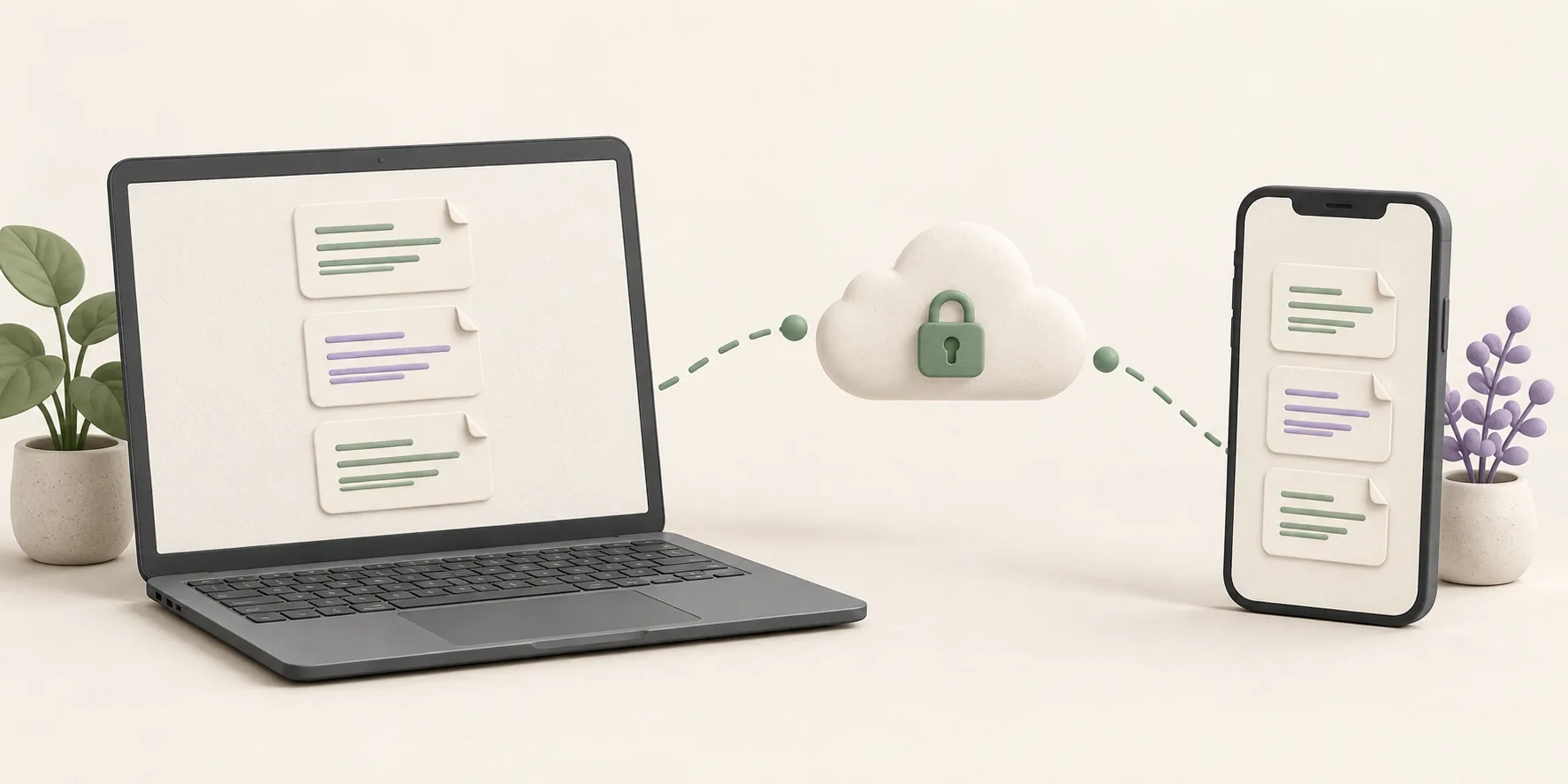
To sync Obsidian between Windows and iPhone, choose a method that works inside Obsidian on both devices. The simplest official choice is Obsidian Sync. Synch is an end-to-end encrypted alternative that runs as a community plugin. Other plugins and Git can work, but take more setup.
The tempting shortcut is to put your vault in iCloud Drive on Windows and open it on your iPhone. Obsidian’s sync guide warns that iCloud Drive on Windows may cause file duplication or corruption. iCloud is a better fit when all your devices are Apple devices.
This guide helps you choose a Windows–iPhone setup, move an existing vault safely, and check that the first sync actually worked.
Which method should you choose?
| Method | Good fit | What to know |
|---|---|---|
| Obsidian Sync | You want the official, built-in option | Requires a paid subscription; choose end-to-end encryption when creating the remote vault |
| Synch | You want an encrypted hosted alternative with a free option for small vaults | Install the Synchrun community plugin in Obsidian on both devices |
| Remotely Save | You already use a supported storage provider and want to configure it yourself | Setup and behavior depend on the provider and plugin settings |
| Git with an iOS Git app | You already use Git and want manual version control | Pull, commit, push, and resolve conflicts yourself |
For most people moving between a Windows PC and an iPhone, start with Obsidian Sync or Synch. Both connect local Obsidian vaults through a remote vault, so you do not need to make the iPhone’s Files app treat a Windows cloud folder as an ordinary local vault.
Google Drive and OneDrive are convenient for files on Windows, but neither provides a straightforward, officially supported Obsidian vault folder on iOS. Syncthing also needs extra iOS tooling. See Obsidian’s platform guidance before building a workflow around one of those services.
Before you connect the devices, protect the vault
Decide which copy has the latest notes. If you have already edited the vault on both devices, compare recent notes and attachments before connecting either copy to a new remote vault. Do not assume the Windows folder is complete just because it is easier to browse.
Once you know where the current files are:
- Let the existing sync service finish any pending downloads.
- Make a separate copy of the complete vault, including attachments and the
.obsidianfolder. Keep it outside folders managed by iCloud, OneDrive, or your new sync service. - Open the backup and confirm that a few recent notes and attachments are there.
- Keep the backup untouched while you set up the new method.
Sync and backup serve different purposes: sync copies changes, including accidental deletions, to your other devices. Obsidian recommends a separate backup even when you use a sync service.

If your vault currently uses iCloud on Windows
After backing up, make a new local working copy outside the iCloud Drive folder on Windows and open that copy as a vault in Obsidian. Use it to seed your new sync service. On iPhone, connect through a new local vault rather than connecting the existing iCloud-managed vault to a second sync service.
Keep the old iCloud copy as a reference until you have verified the new setup. Do not continue editing both copies: that would leave two independent versions of your notes. Obsidian specifically warns against mixing sync services on one vault.
If the iPhone has changes that are missing from Windows, bring those files into the complete working copy before the first upload. Review conflicting versions of a note instead of letting an empty or older copy decide which one wins.
Option 1: Set up Obsidian Sync
Obsidian Sync is built into Obsidian and supports Windows and iOS. You need an Obsidian account and a Sync subscription.
On Windows:
- Open the complete local working vault. If it is still inside iCloud Drive, move to the separate local copy described above first.
- Sign in under Settings → General → Account and enable the Sync core plugin.
- Open Settings → Sync, create a remote vault, and choose an encryption password if you want end-to-end encryption. Save that password somewhere secure; it is separate from your account password.
- Review selective sync and vault configuration settings, then start syncing. Wait until Obsidian reports Fully Synced.
On iPhone:
- Open Obsidian’s vault switcher and choose Setup Obsidian Sync. Create a new local vault from the remote vault you just uploaded.
- Sign in, select the remote vault, and enter its encryption password if prompted.
- Review the iPhone’s sync settings, then let the initial download finish before editing.
Obsidian’s setup guide has the current screen-by-screen flow, including the status indicator and options for syncing settings. A fresh local vault on iPhone avoids merging the upload with an older iCloud copy.
Option 2: Set up Synch
Synch uses the Synchrun community plugin on desktop and mobile Obsidian. It encrypts vault data on your device before upload and offers hosted plans, including a free plan for small vaults. Check the current plans if your vault has large attachments.
On Windows:
- Open the complete local working vault outside any other active sync folder.
- In Settings → Community plugins, browse for Synchrun, then install and enable it.
- Open the plugin settings, sign in, and choose Create vault.
- Set and store the vault password. Let the initial upload finish while Obsidian stays open.
On iPhone:
- Create a new, empty local vault in Obsidian. Do not reuse the iCloud-managed copy for this connection.
- Install and enable Synchrun from Community plugins and sign in to the same account.
- Choose Connect vault, select the remote vault, and enter its vault password.
- Keep Obsidian open until the initial download has finished. Check a recent note and attachment before making new edits.
The Synch project instructions describe the plugin’s current install flow. Your vault password unlocks encrypted data on another device; keep it safe. See how Synch encrypts and unlocks a vault for the details.
Check the first sync in both directions
A successful sign-in does not prove that every file is ready. Test the actual vault:
- On iPhone, open two recent notes and an attachment that started on Windows.
- Create a short test note on Windows. Wait for sync to finish, then confirm the note appears on iPhone.
- Add a different test note on iPhone. Keep Obsidian open until it syncs, then confirm it appears on Windows.
- Compare the contents of both test notes, not just their filenames.
- Look for duplicate or conflict files and review any that appear before deleting anything.
If you sync .obsidian, check whether the plugins and settings you need work on iPhone. Desktop and mobile may need different layouts or plugin behavior. You can decide which settings to sync after your notes and attachments are stable.

Other methods worth considering
Remotely Save can connect Obsidian to a storage provider from both devices. It gives you more control over the storage destination, but you must check the provider’s compatibility, encryption settings, and conflict behavior yourself. Our Remotely Save guide covers those tradeoffs.
Git can work when you already know how to pull and push changes. On iPhone, a Git client such as Working Copy adds another app and manual steps. This is useful for deliberate version control, but less comfortable for quick mobile notes. See our Obsidian Git guide if that is your preferred workflow.
Avoid placing the same active vault under two sync engines. A backup copy in another location is useful; two services editing the same live folder can produce competing updates. If a note is duplicated or seems to disappear, stop editing, check both local copies and your backup, then follow our sync conflict guide.
Windows and iPhone sync FAQ
Can I sync Obsidian between Windows and iPhone for free?
Yes, depending on your vault size and how much setup you accept. Synch has a free plan for small vaults. A community plugin or Git may use services you already have, though their storage or app features can have separate limits. Obsidian Sync is a paid service. Check current plan limits before moving a large vault.
Can I use iCloud for Obsidian on Windows and iPhone?
You may be able to open an iCloud Drive folder on Windows, but Obsidian warns that iCloud Drive on Windows may duplicate or corrupt files. For a vault you edit on both devices, use a method designed to connect Windows and iOS, and keep a separate backup.
Why are my iPhone notes not appearing on Windows?
First check that both devices are connected to the same remote vault and that the initial sync has finished. Confirm that Obsidian stayed open long enough on iPhone to upload the change. If the missing note exists only in an old iCloud vault, it will not appear automatically in a newly connected local vault; review and copy it from the old vault before retiring that copy.
Should I sync the .obsidian folder?
It contains configuration such as plugins, themes, and workspace settings. Syncing some of it can make your setup feel consistent, but desktop settings may not suit mobile. Start by confirming that notes and attachments sync correctly, then choose the configuration files you actually need on both devices.
The safest practical starting point
For a new Windows–iPhone setup, use Obsidian Sync if you want the official integration, or Synch if you want an encrypted community-plugin alternative. Whichever you choose, begin with the complete vault, keep an independent backup, connect the iPhone to a fresh local vault, and verify a change in both directions before relying on the new setup.